Copy the product
To Copy a product to a different category, find the product in your store, either browse to the product in the admin via the “Catalog > Categories/Products” or search for the product (by name or reference number) using the search field in the admin.

Or browse to the product list

Click the  next to the product.
From the next screen select the category you want to move the product to from the drop down list.
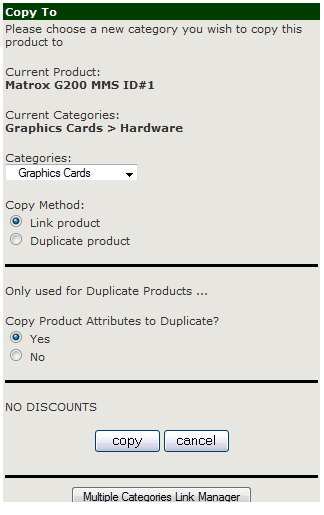
There are two different options for copying products in Zen, they are “Link product” or “Duplicate Product”.
A “Link product” is an identical product stored in two different categories; any changes made to one of the linked products, will also update the copy product. Linked products are highlighted in the admin with a Yellow dot next to them in the product listing.
A “Duplicate product” is a separate product.
Select “Link product” or “Duplicate Product” depending on your requirements.
The newly copied product will appear in the product listings but it will be inactive (hidden), you need to edit the product to make it live.
If a product has Attributes you will also be asked if you want to copy the products attributes to the copy products (see Attribute for more details).
Then click the copy button.
Or click cancel to stop the copy and return to the previous page
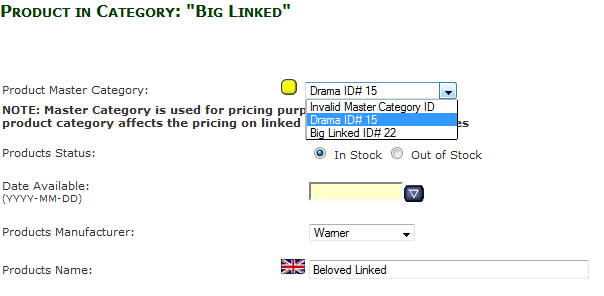
When you create a “Link Product” the original product will be classed as the Master Product.
The site will use the Master Product to set pricing information, this is relevent to sales not specials.
As an example.
You have one product in two categories Cat1 and Cat2 and you decide to set a sale of 10% on all items in Cat1
If the product has its Master category set as Cat1 it will have the 10% sale on both copies.
If the products Master category is Cat2 (and its linked product is in Cat1) it will not have the sale applied.
You can change a product Master Category by editing the product and changing the Product Master Category setting.