Adding a category
To add a new category, navigate to where you want to place the new category (if it’s a sub category click on the category you wish it to be under).
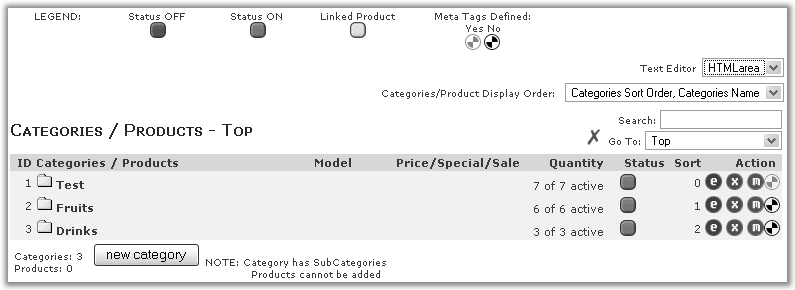
Clicking new category here would add a category at the same level as Test, Fruits, Drinks.
Click the new category button and enter the information.
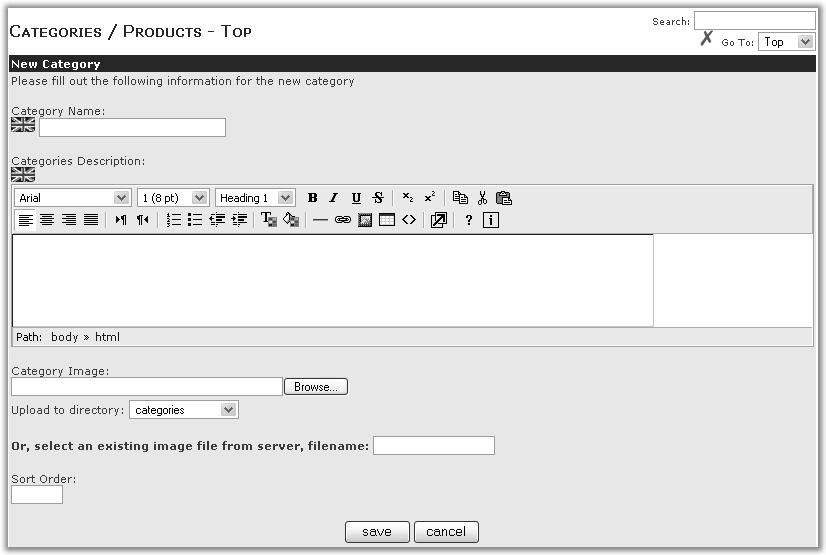
Category Name, this will be visible online and will be part of the sites navigation.
Category Description, if used this will be shown at the top of the product listings for the respective category.
Category Image, if used this will be shown at the top of the product listings for the respective category. Click browse to find the image you wish to use on your computer or if the image is already on the site (in the categories folder) type the name in the filename box.
Sort Order, this decides the order that the category will display relative to other categories at the same level. If this is blank the categories will be displayed in alphabetical order. Unless there is a specific reason for it (eg you want to have one category highlighted at the top of the list) it’s easier to leave this field blank.
Once the information is added click Save