Adding Attributes to your products
Once you have added the Attribute to your store, you can start adding them to your products.
On the Product listing page (Catalog–>Categories/Products) click the  next to the product you want to add attribute to. (If the product already has attributes assigned the A icon will look like this
  )
)
If the product has no current attribute you will be taken to the Attribute Controller page.
If the product has attributes already set you be taken to a page that has various options.
You can
Delete all options attached to the product.
Update the product attributes sort order (if these have been changed on the Option Value Manager page)
Copy to, you can copy the attribute of the current product to either another product or another category.
If you choose Copy to (product or category) you will be offered three choices.
Delete any attributes the destination product or category had and replace with the source attributes
Update the destination product or category attribute with source attributes.
Ignore and only add new source attributes.If you select Copy to Category this will affect ALL products in that destination category.
USE WITH CAUTION
Preview, show the current attribute, roughly as the customer will see them.
Attribute Controller, will take you to the page for adding and amending the products attributes.
On the Attribute Controller Page you will see any attributes currently assigned to the product, they will be grouped by their option name.
To add a new attribute to a product move to the Adding New Attributes section.
From the left hand list (Option Name) select the name you want to add, the right hand menu (Option Value) will change to show all option values for that option name.
You can select one or multiple values (hold ctrl on your keyboard or click with your mouse)
When you have selected all the valued you want to add click the insert button.
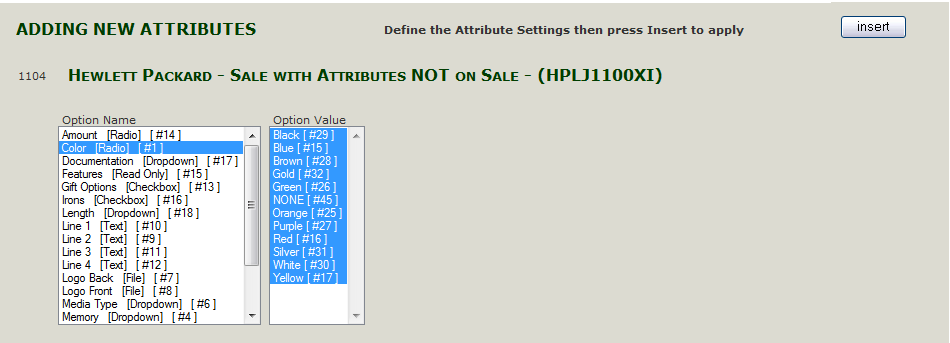
This is the quickest way to add several option values to a product in one go, but we need to make some amends to individual option values to make the store run more smoothly.
If you require the customer to select one option before they can add the product to their cart, this is where we set that requirement.
Each option value has has a list of setting next to on the Attribute Controller Page
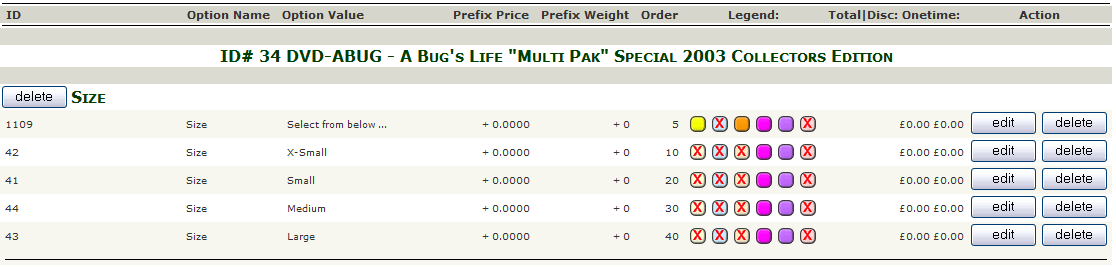
These include
Prefix Price: Additional Charge applied to product if this option is chosen.
Prefix Weight: Additional weight added if this option is chosen (used if shipping is charged by parcel weight)
Order: Sort order of the value relative to other values under the option name.
Next is a group of icon that can be clicked to alter their state (from left to right)
Display Only: Product can not be added to cart if this option is selected.
Free: If the product is free, then this option will (even if it has price assigned) also be free.
Default: This is the default option selected when the product page is displayed.
Discounted: This applies Specials and Sale Price to the option value price, eg if product is on sale at 50% the option value will also be reduced by 50%.
Base Price: This works with the Product Priced By Attributes setting from the Product Page (See Add a Product).
Required: Used on Text option, this forces a customer to enter some text before they can add the product to their cart.
You can click these icons to toggle their state or you can click edit to show a screen to make the amends.
On the Edit page you can amend more of each option values details.
The main detail you will most likely need to amend on this page are
Under Prices and Weights.
You can add additional charges per option by using the Price field.
You can add additional weight to a the base weight of a product
if you sold bottles, and the option was to have the bottle filled with liquid, a bottle full of liquid would weight more and hence cost more to post, by adding the weight factor on the attribute you can charge more for postage on the filled bottle, this assumes your site is set to charge postage by weight.
The other setting on this page that may be frequently used is the Attribute Image Swatch, this allows you to upload an image that represents the option value eg for colours you could upload a sample for each colour available for that product.
Click the update button to save any change you have made.