Discount Coupons
Discount Coupons are a great way to get new customers, retain existing customers and track your various other advertising campaigns.
They can be emailed to existing customers using the Zen cart email function (see Send Email to Customers).
Coupons can be restricted to products or categories and have minimum order value set before the voucher can be redeemed.
Their use can be restricted, either by total redemption or use per customer.
And they can have start and expiry dates set to further restrict usage.
To add a new Discount Coupon go to Catalog–>Coupon Admin.
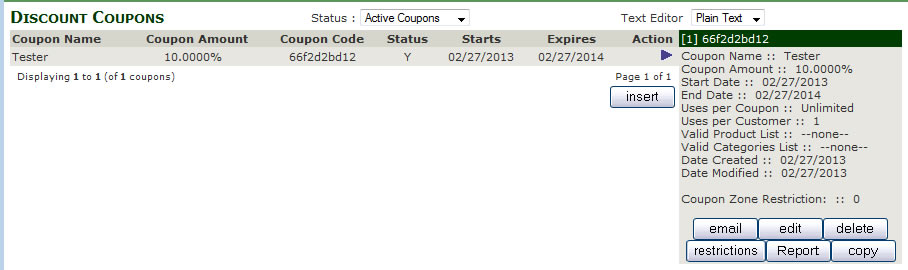
This page shows a list of the current Discount Coupons to insert a new coupon click the insert button.
Enter the details on the Discount Coupon page.
Coupon Name: used to identify to the coupon in the admin.
Coupon Description: Provide information to the customer when they enter the coupon in the checkout or when the coupon is emailed.
Coupon Amount: this is deduction value of the coupon, enter either a number value (ie 5 for £5 discount) or as a percentage (ie 10%, NB you must add the % sign otherwise number will be take as £ value).
Coupon Minimum Order: this is used to set a minimum order value before customer can use the coupon code.
Free Shipping: if you want the customer order to become free shipping when they use the Coupon tick this box.
Coupon code: you can manual type in a code if you need to otherwise leave this blank and Zen cart will generate a random code for you.
Use per Coupon: this limits the amount of time a Coupon can be redeemed (ie if you want to limi this to the first 50 customer, enter 50 in this box).
Uses per Customer: this restricts the amount of time each customer can use a Coupon.
Start date and End date: are the dates the Coupon can be redeemed, these are optional, if not dates are entered the Coupon will be live once its inserted and never expire.
Coupon Zone restriction: is used to Coupon to different zone (if you site is configure this way)
Click the preview button to check the details entered or click cancel to go back to the Discount Coupon list page.
On the preview page you can see the detail you have entered.
You can either click cancel or confirm.
There is no edit option at this stage of the coupon admin you can either.
Cancel which returns you to the Discount Coupon page.
Or Confirm to add the coupon to the site.If you have made a mistake and need to make some amendment to the voucher click confirm to add the coupon to the site, the use the edit coupon to make any changes you need to.
Once the Discount Coupon is added you then have access to some more functions.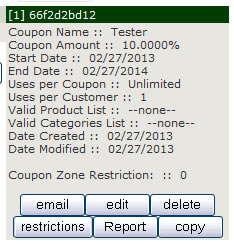
Click the  next to Discount Coupon name to display the coupon panel.
Email, let you email the coupon to a selection or individual customers. (See Send Email to Customers)
Edit, let you amend the coupon, this uses the same layout as adding a coupon.
Delete, remove the coupon from the site.
Restrictions, let you restrict the coupon to specific products or categories. (see below)
Report, display a list of who has redeemed the coupon.
Copy, let you replicate the vouchers settings.
Restrictions
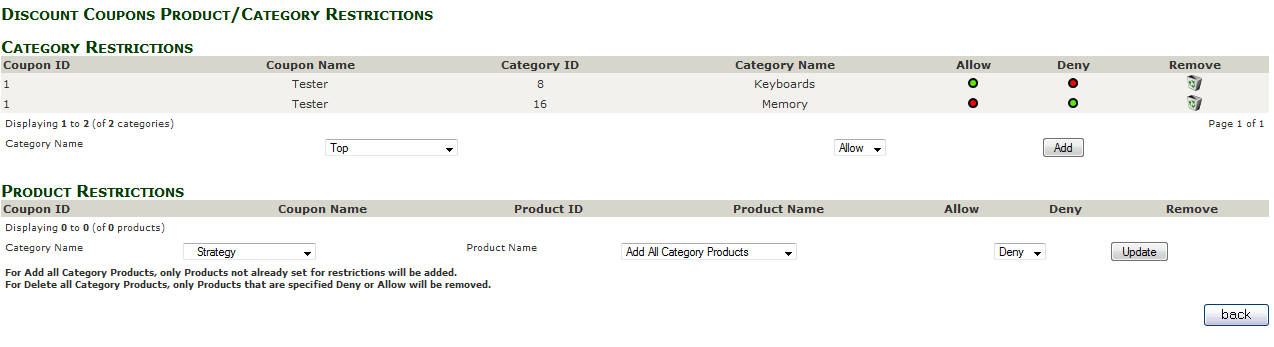
To restrict a coupon you have two options, you can restrict by category or by product, you can also allow or deny by category or product. Visit the “Discount Coupons Product/Category Restrictions”.
Examples
Categories
If you wanted to a offer a coupon on one category you would select that category from the first dropdown and select “Allow” from the second.If you wanted to offer a coupon on all categories excluding one particular category you would select the category you want to exclude from the list and select “Deny” from the second dropdown list.
Then click the add button
The same applies to product you can either “Allow” a product or “Deny” depending on your coupon requirements.
If you want to offer a have a coupon apply to a category (as set above) but exclude a single product in that category, select the product from the “Product Restrictions” section and select “Deny”.
Or if you want to use a coupon for a specific product, you would set the category restriction to “top” (the whole store), then select the product from the list and click “Allow”.
Restricting coupons can be very useful, allowing you to define where they can be spent, but they can also be confusing for customer if you start using some of the more complex allow/deny functions mentioned above.
Try to keep it simple!