Mac OS X
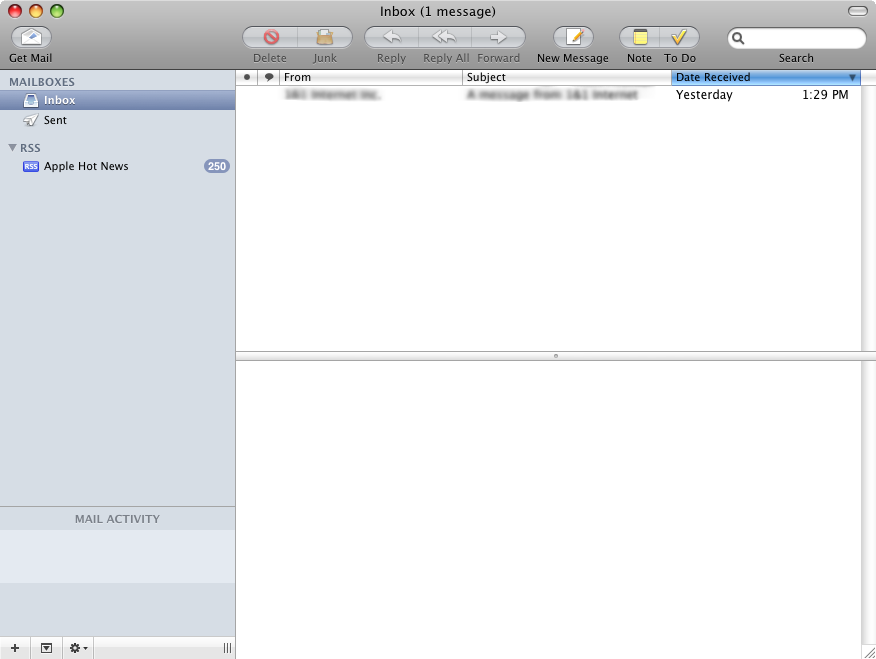
1: Open Finder and launch the Mail application.
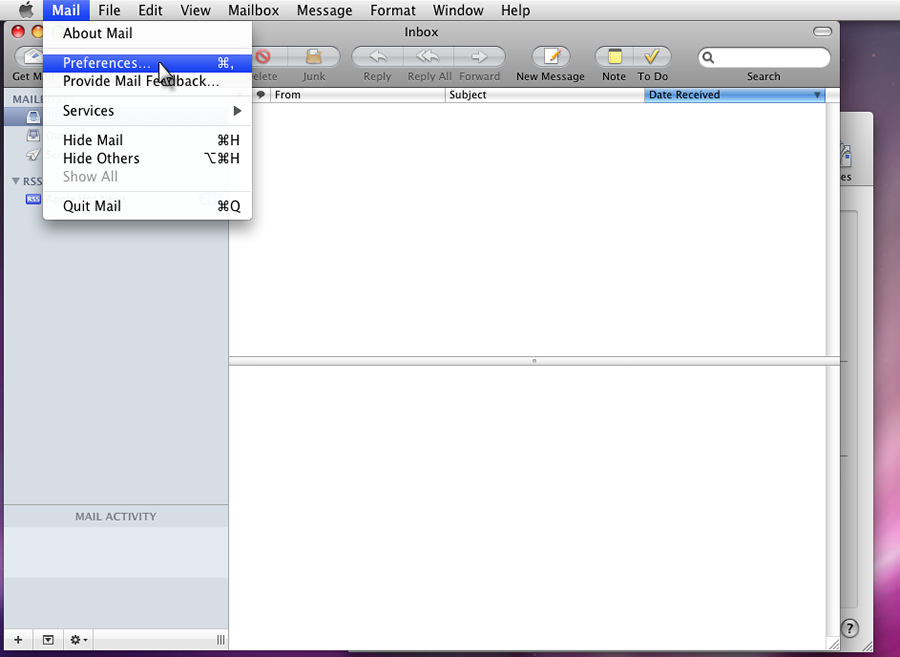
2: Click the Mail menu and select Preferences.
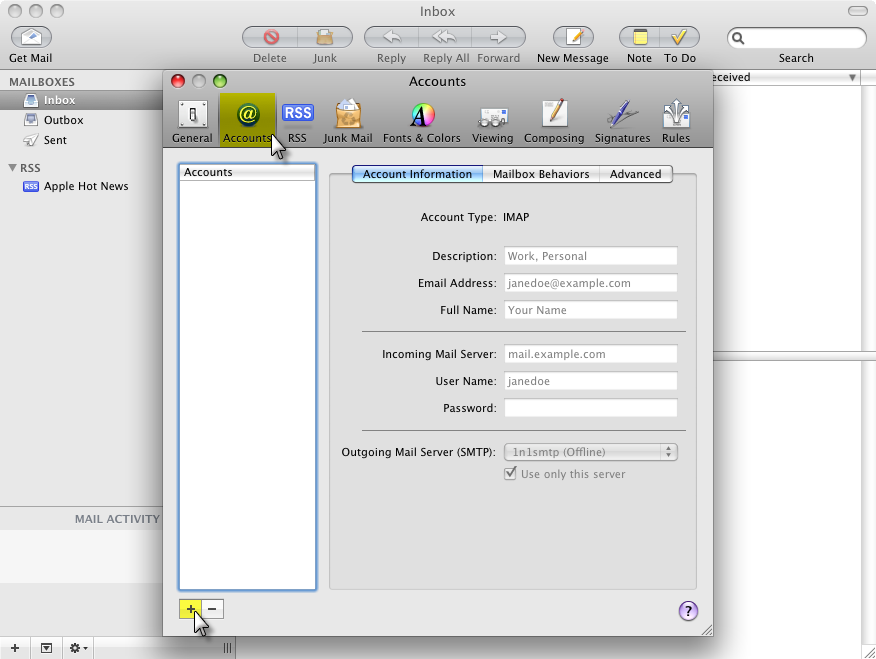
3: Click the Accounts icon at the top of the window and then click the plus sign (+) at the bottom-left of the window to add an account.
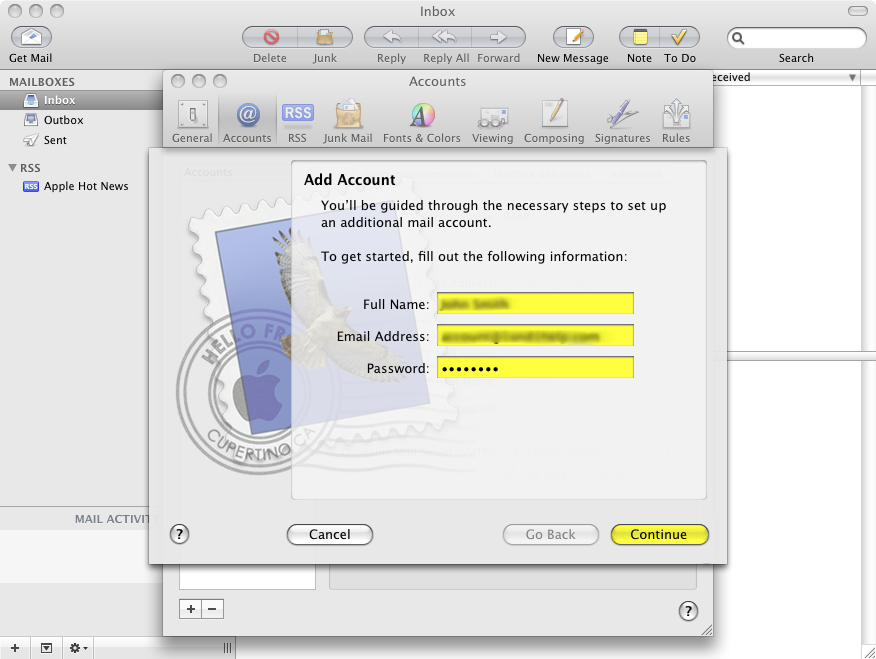
4: Enter your Full Name, Email Address and Password. When finished, click the Continue button
5: From the Account Type drop-down menu, select IMAP.
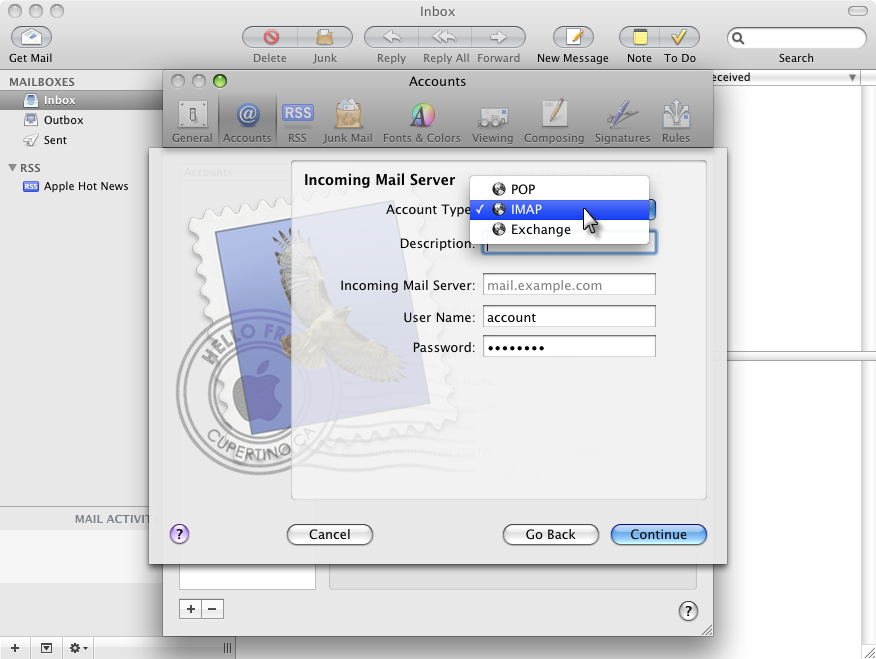
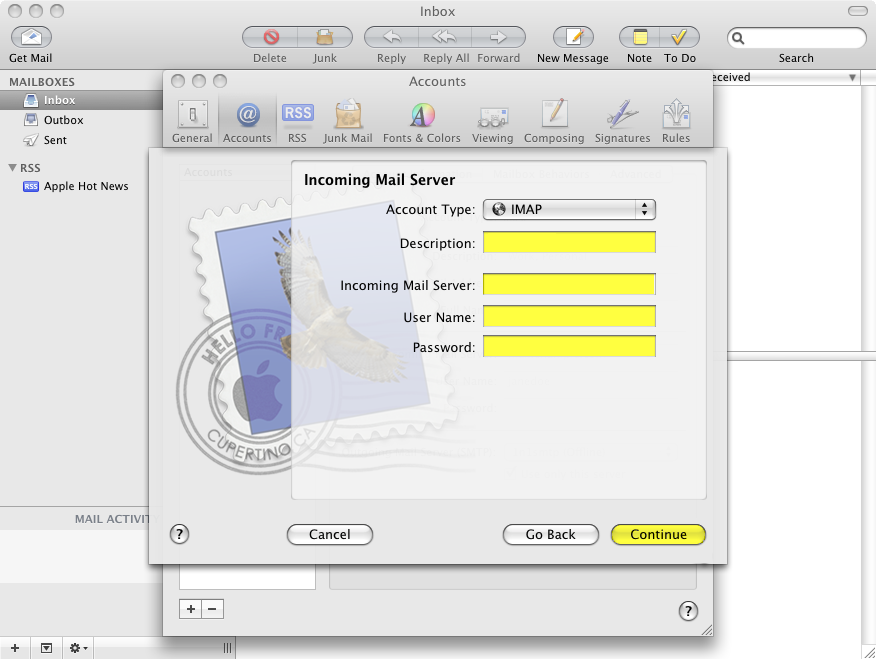
6: Enter a Description to differentiate this IMAP server from others you may have added to Mac Mail.
Enter the Incoming Mail Server.
Enter your full e-mail address as the User Name.
Enter the e-mail account’s Password.
Click the Continue button when finished
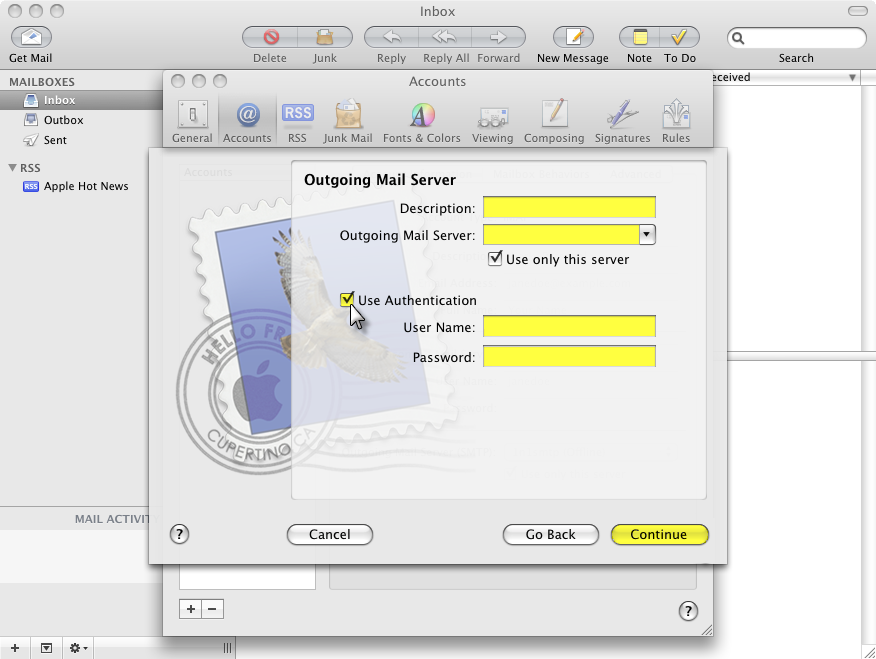
7: Enter a Description to differentiate the 1&1 SMTP server from others you may have added to Mac Mail.
Enter the Outgoing Mail Server.
Check the box for Use Authentication
Enter your full e-mail address as the User Name.
Enter the e-mail account’s Password.
Click the Continue button when finished.
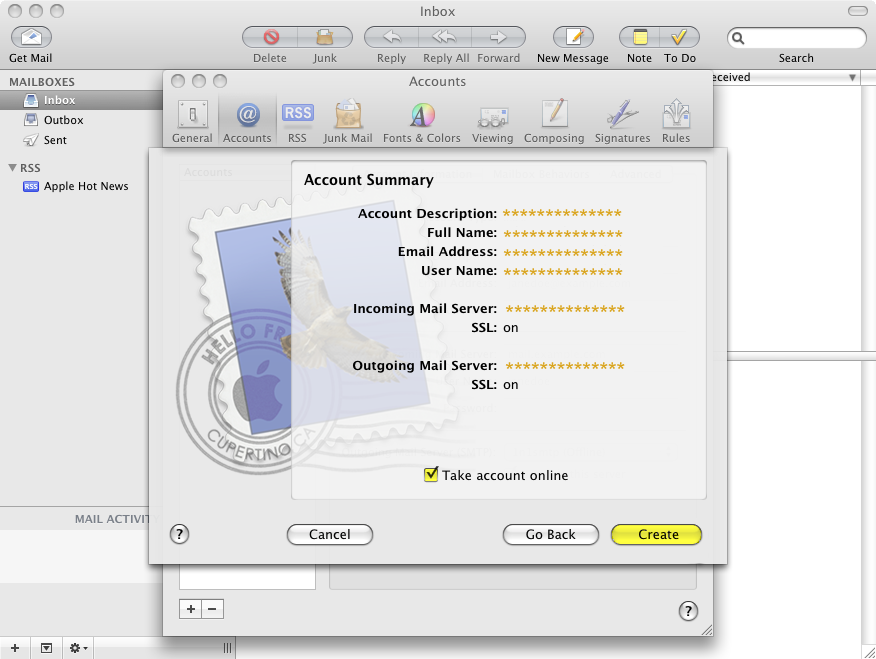
8:Review the information entered on the the Account Summary page. If all information is correct, check the box for Take account online and click the Create button.
9: Close the Accounts window.
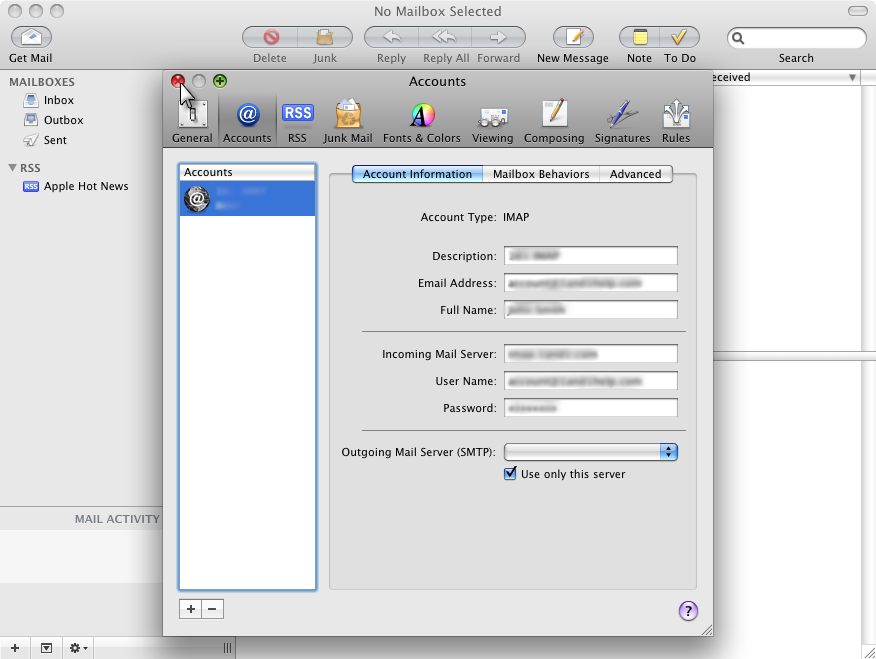
10: Your mail should be downloaded and displayed in the Mail window.