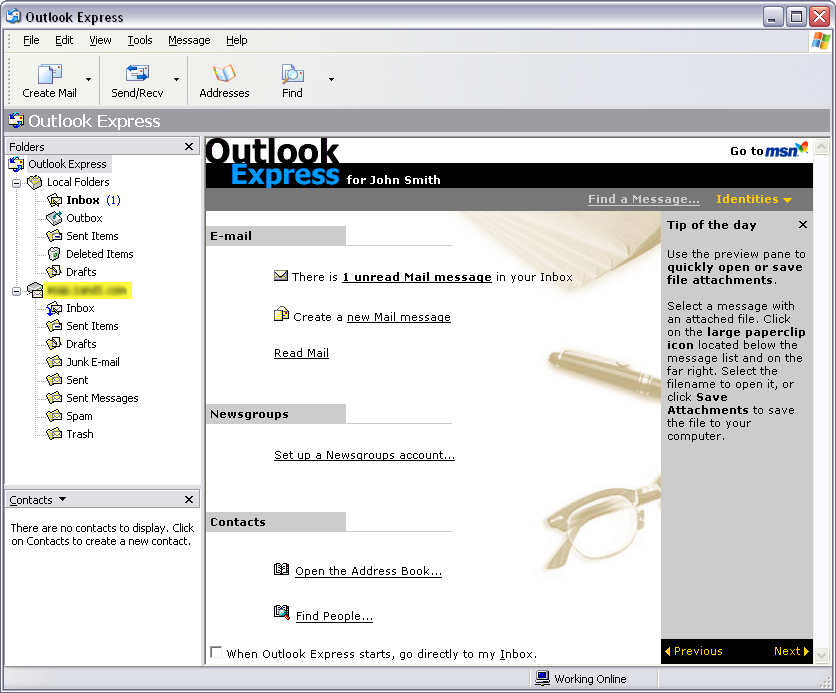
Microsoft Outlook Express
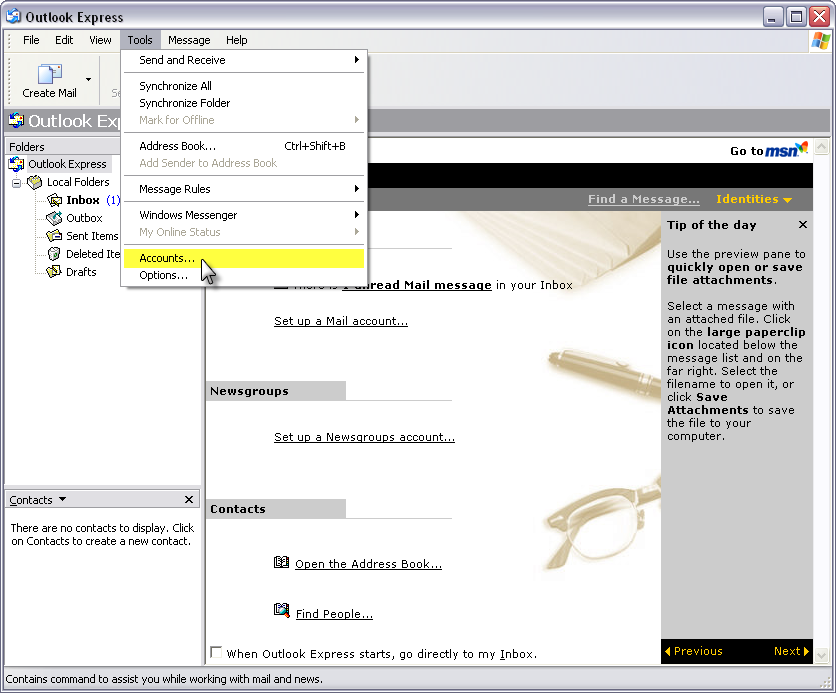
1: Launch Outlook Express from the Start menu on your computer and then select Tools –> Accounts.
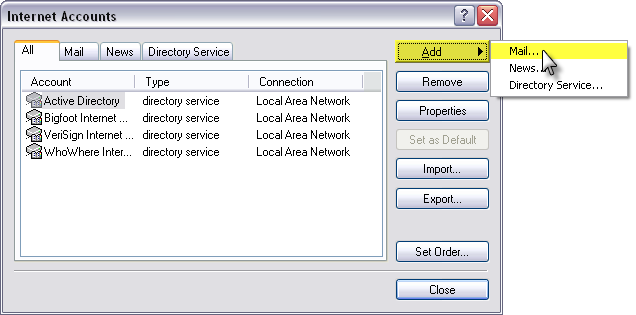
2: Click the Add button and select Mail.
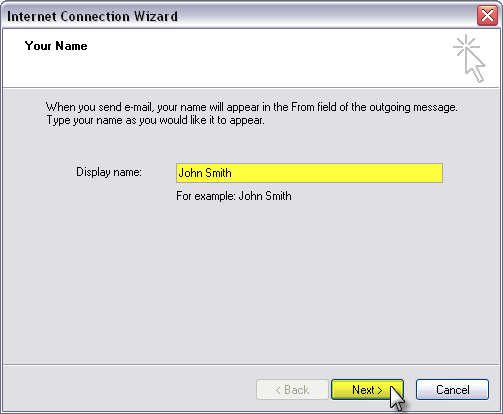
3: Enter your Display name. The display name is the name that will appear when others receive mail from your account. Click the Next button to continue.
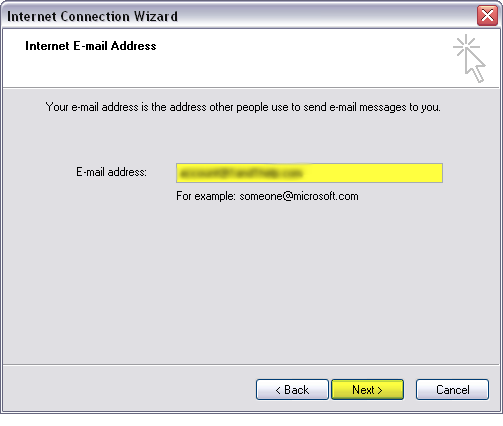
4: Enter your E-mail address in the text box and click the Next button.
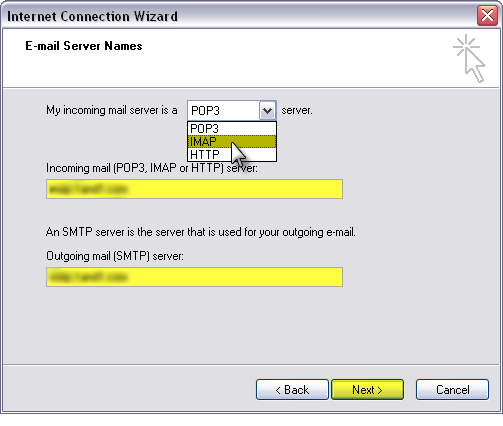
5: From the drop-down box, select IMAP as the e-mail account type.
Type the Incoming mail server address.
Type the Outgoing mail server address.
Click the Next button to continue.
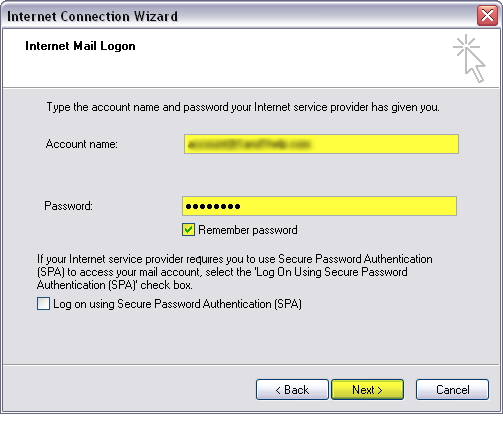
6: Enter your full e-mail address as the Account name and enter the e-mail account’s Password that was setup with the account. If you do not want to enter your e-mail account’s password every time you send or check your mail, make sure that the Remember password check box is selected. Click the Next button to proceed.
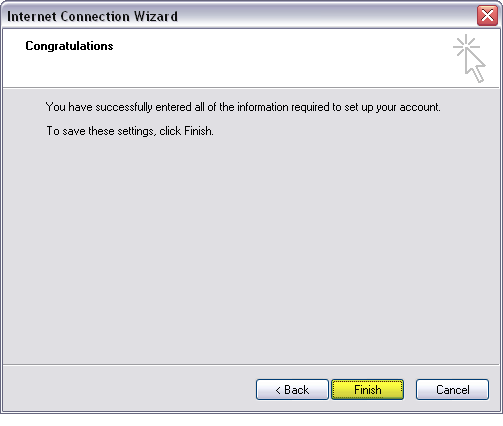
7: Click the Finish button to exit the wizard.
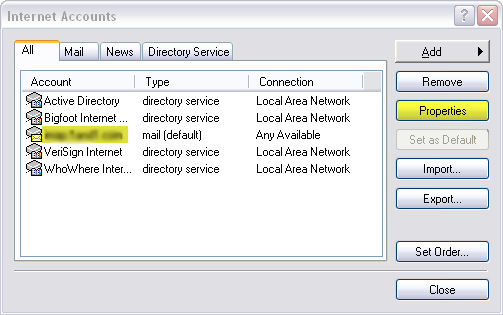
8: Make sure to select the newly added account we’ve just set up and click the Properties button.
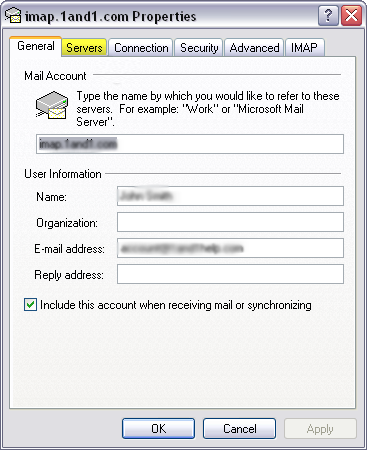
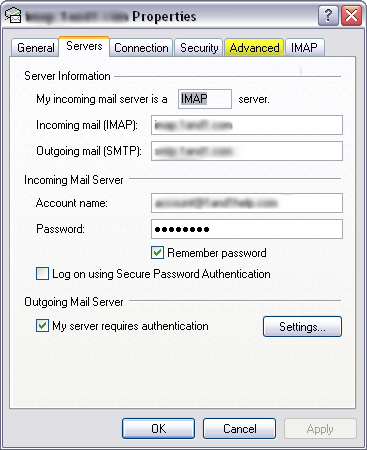
9: Click the servers tab at the top of the new window that opens.
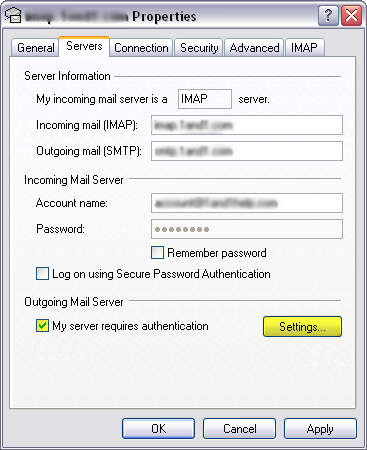
10: Check the box for My server requires authentication and then click the Settings button.
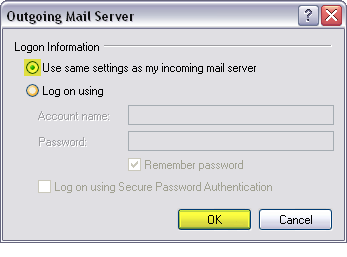
11: Make sure that Use same settings as my incoming mail server is selected and then click the OK button.
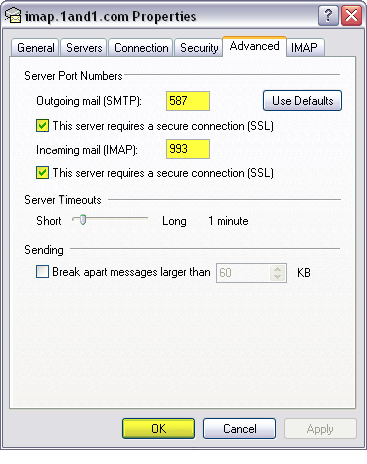
12: Click the Advanced tab.
13: Enter port number 587 as the Outgoing mail (SMTP) port and check the box for This server requires a secure connection (SSL).
Enter port number 993 as the Incoming mail (IMAP) port and check the box for This server requires a secure connection (SSL).
When finished, click the OK button to save your changes.
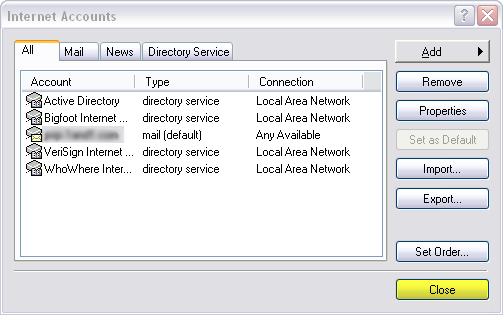
14: Click the Close button to close out the accounts window.
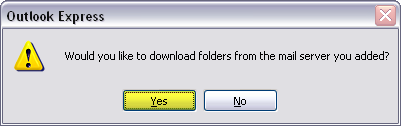
15: A new window appears asking Would you like to download folders from the mail server you added? Click the Yes button.
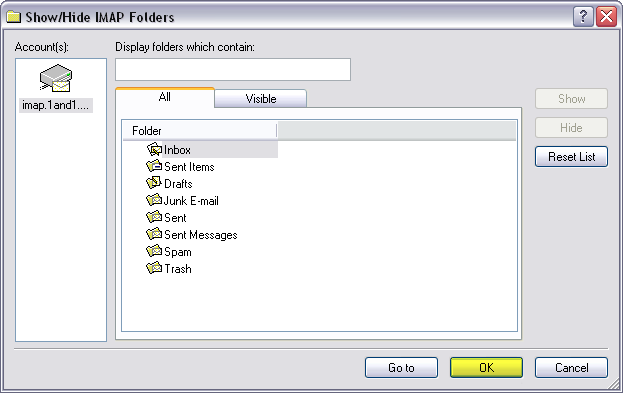
16: A list of all mail folders are displayed. All mail folders are set to visible by default however you can select mail folders you wish to hide. We will leave all mail folders visible by simply clicking the OK button and taking no other action.
17: You will see the account added on the left-hand side of the Outlook Express window. Setup is complete!